Short drama scenes
Turn character ideas and key frames into reference images, then expand them into motion for short-form storytelling.
OpenVideoMaker gives you one creative workspace for image generation, video generation, prompt control, and reference-based iteration so you can move from concept to content faster.
Generation starts only after you confirm the displayed credit cost.
Browse the newest image and video models currently available in OpenVideoMaker and jump into the workflow that fits your task.
Up to 30 seconds of coherent video with 50 multimodal references and native multilingual generation.
Text, image, reference, and video edit workflows in one fast Gemini model.
Faster Kling v3 generation with Standard and Pro Turbo tiers.
HappyHorse 1.1 creates 720P or 1080P videos from text, first frames, or up to 9 reference images.
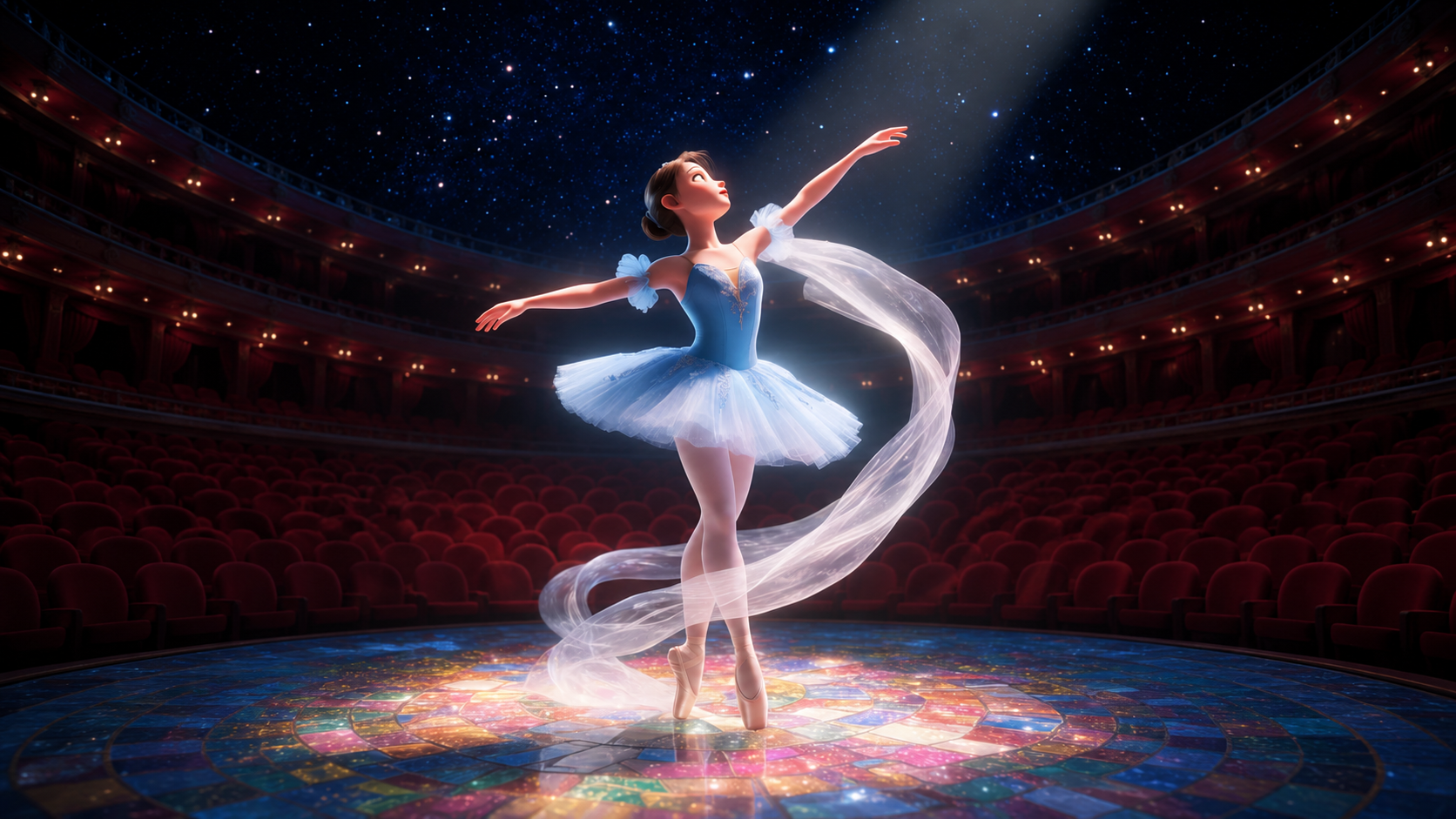
Wan 2.7 Image handles fast multi-image edits and reference-guided generation across the Wan image workflow.
Wan 2.7 turns text, frames, images, or video references into polished 720P to 1080P short clips.
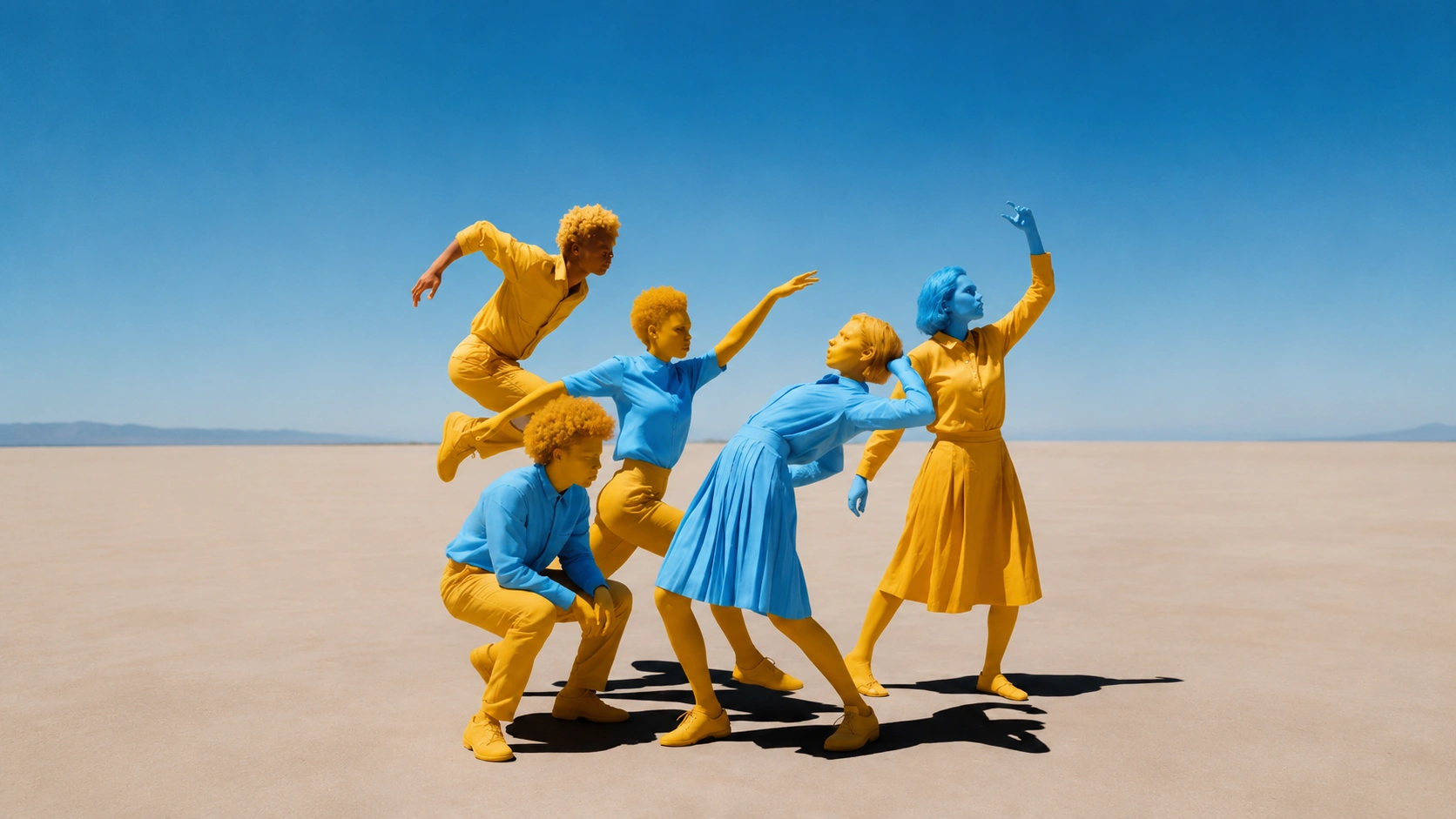
Fast image generation with standout character consistency.
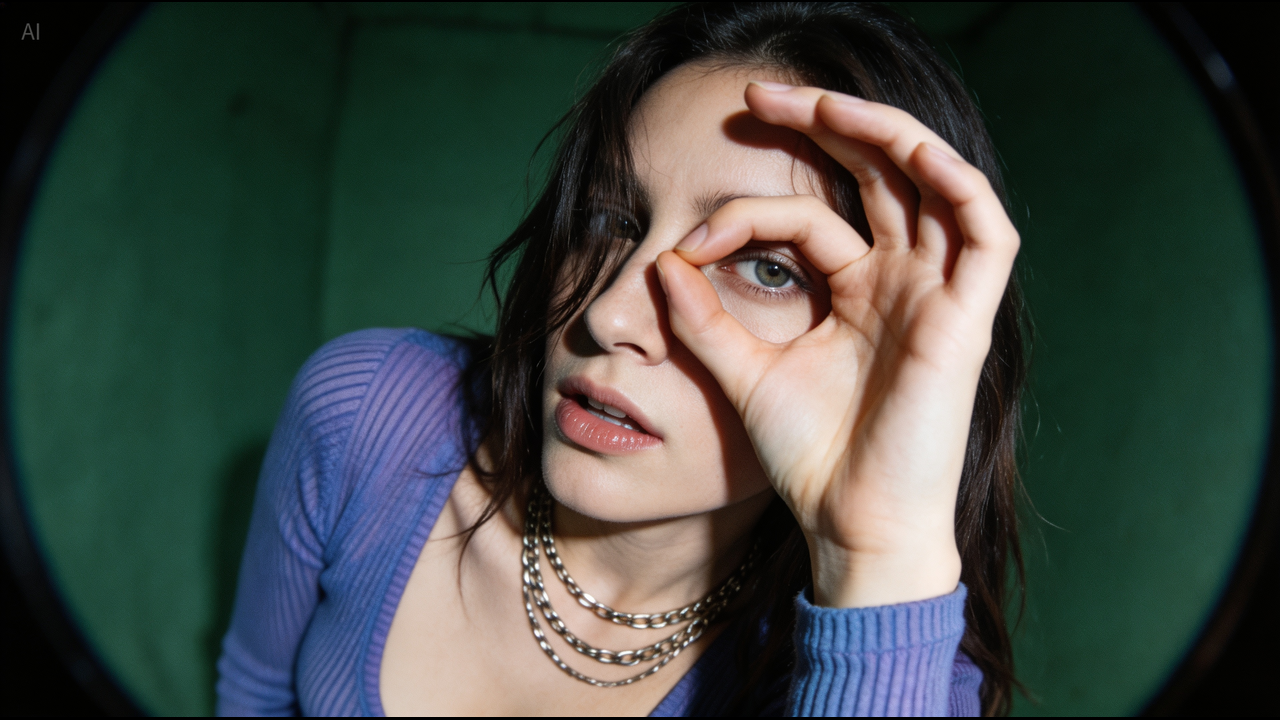
Create polished text-to-image and multi-reference AI images with Seedream 5.0, 4.5, and 4.0 for infographics, edits, and commercial stills.
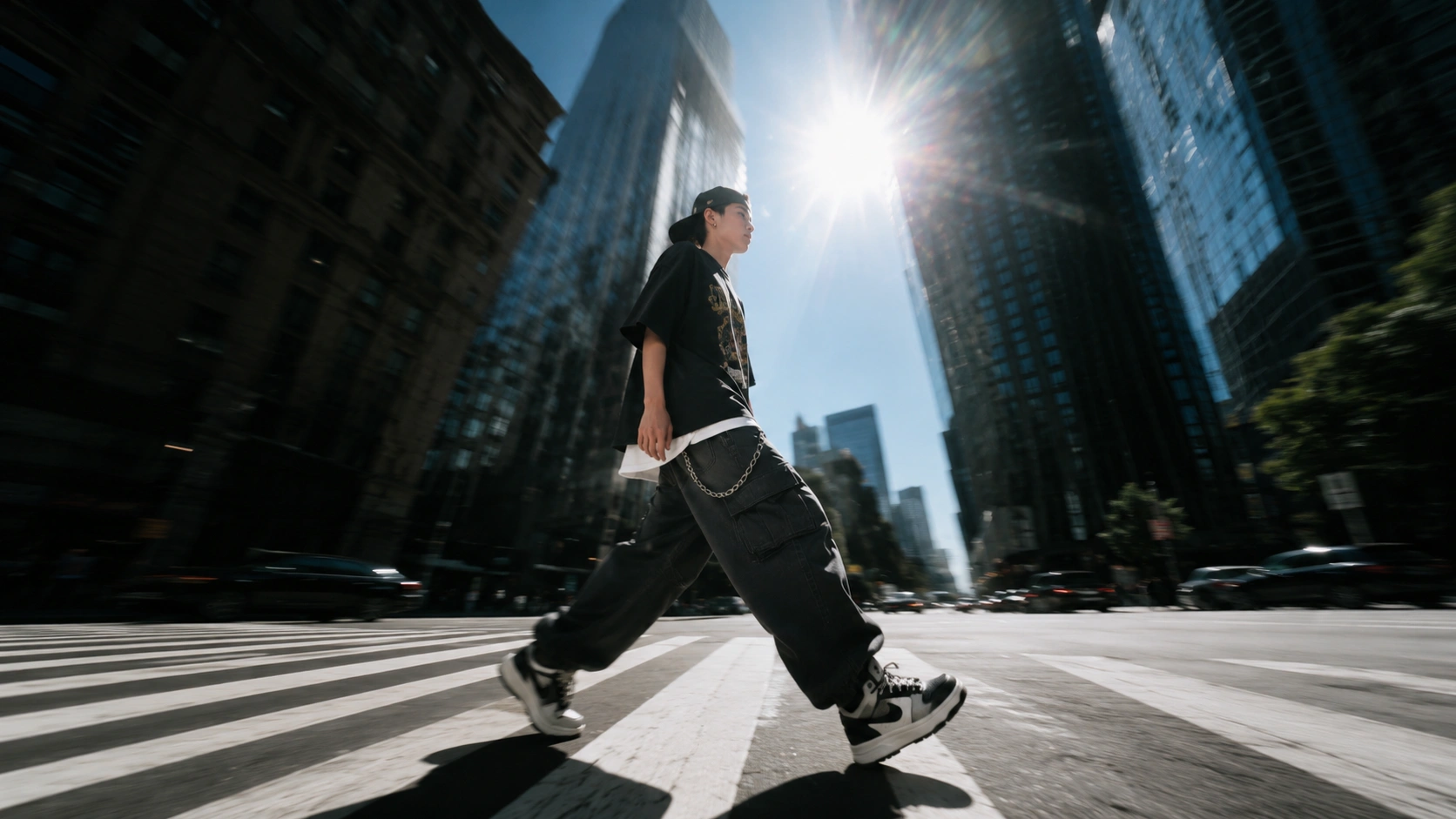
Flexible text-to-image and image-to-image generation with up to 4 references.
Strong multimodal generation with balanced overall visuals.
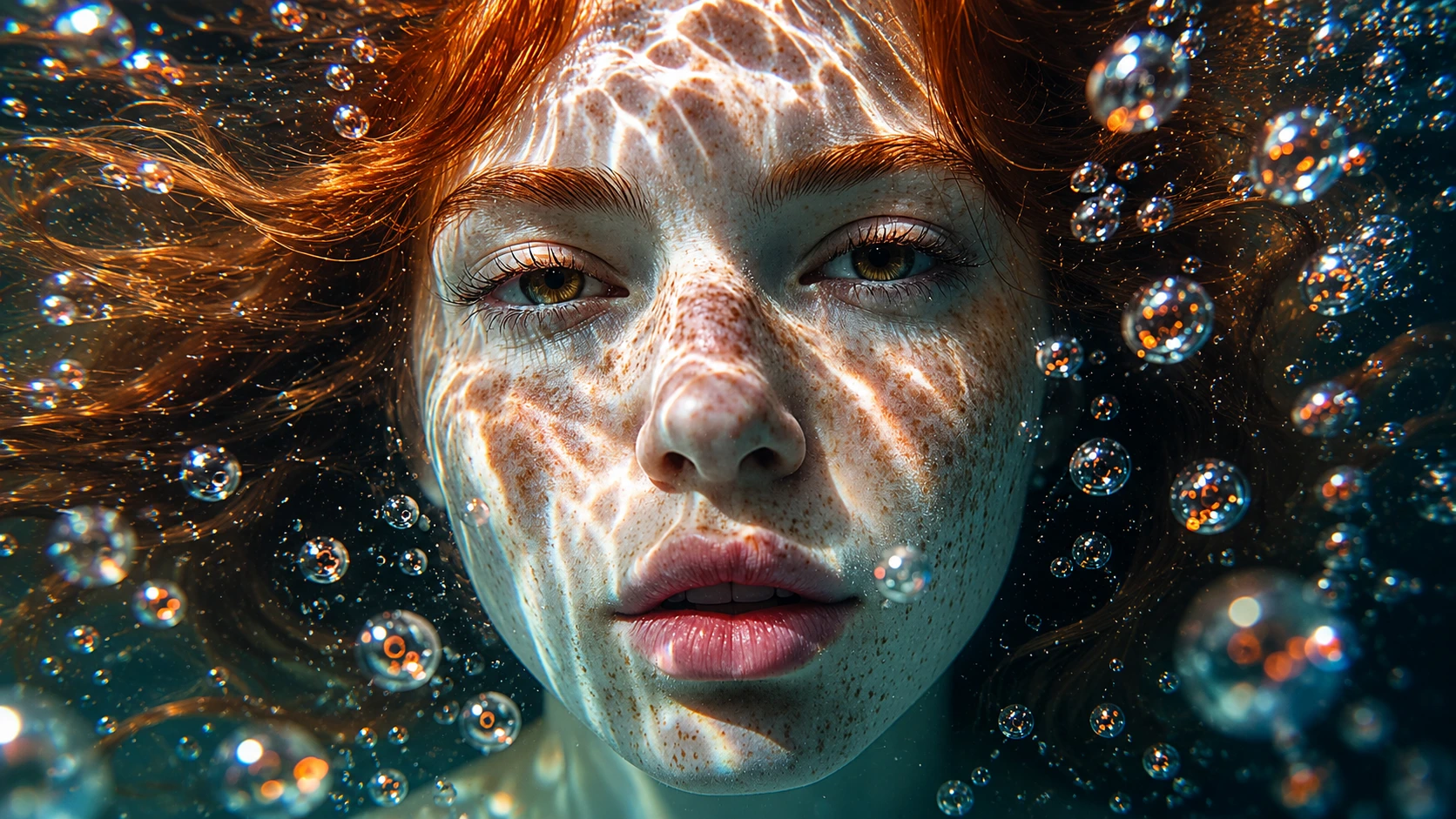
Strong semantic understanding with more stable text and layout.
Stronger cinematic feel with better long-take continuity.
Higher visual fidelity with steadier complex motion.
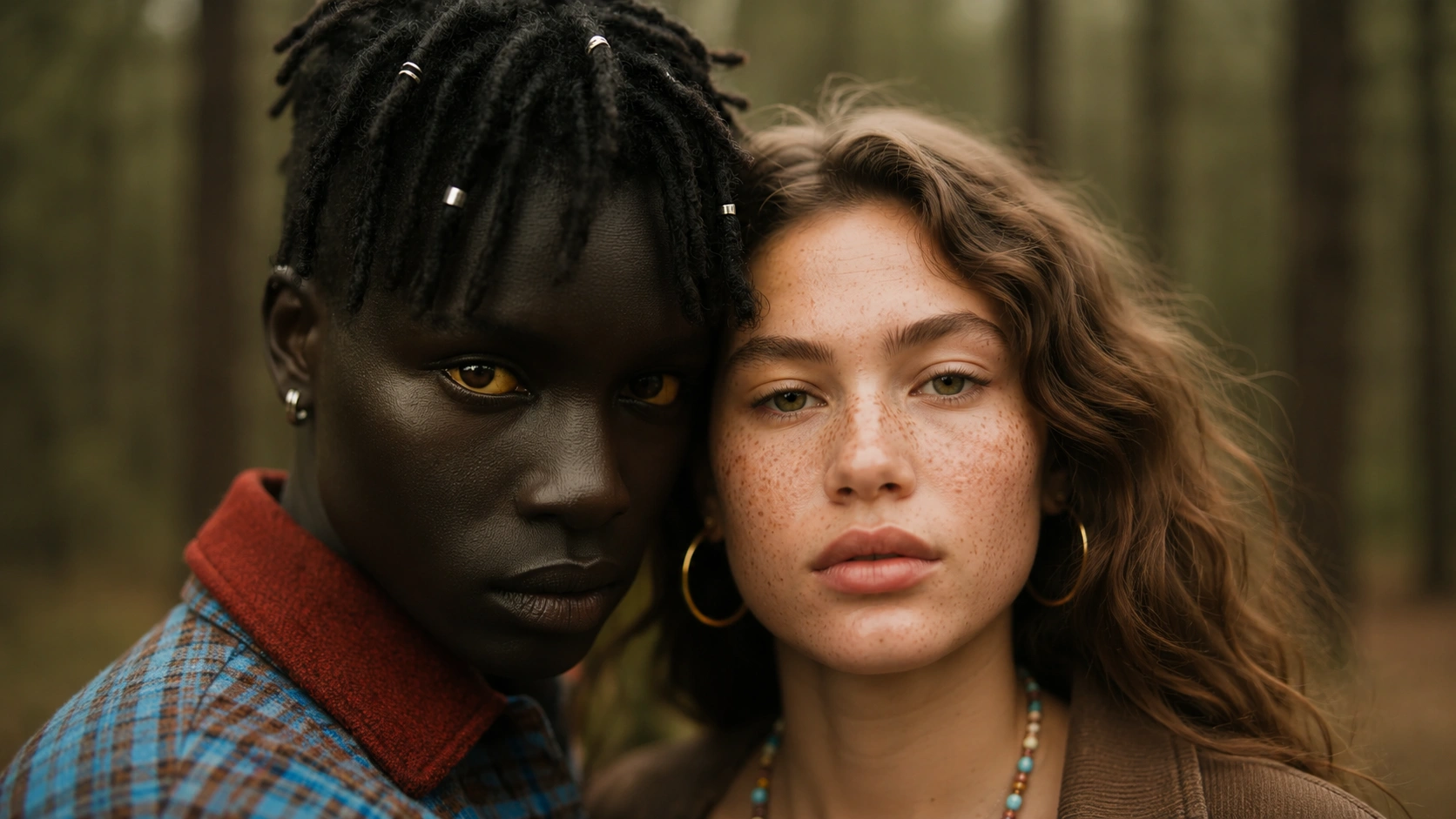
Strong photoreal texture for commercial-quality images.
Explore the newest creative tools in OpenVideoMaker and jump straight into production workflows.
Drive a character photo with a reference motion clip and keep the original audio when needed.
Pick from 190+ video effects, upload one character photo, and generate a stylized effect clip fast.
Create talking AI avatar videos with presets, custom portraits, TTS, uploaded audio, or microphone recording.
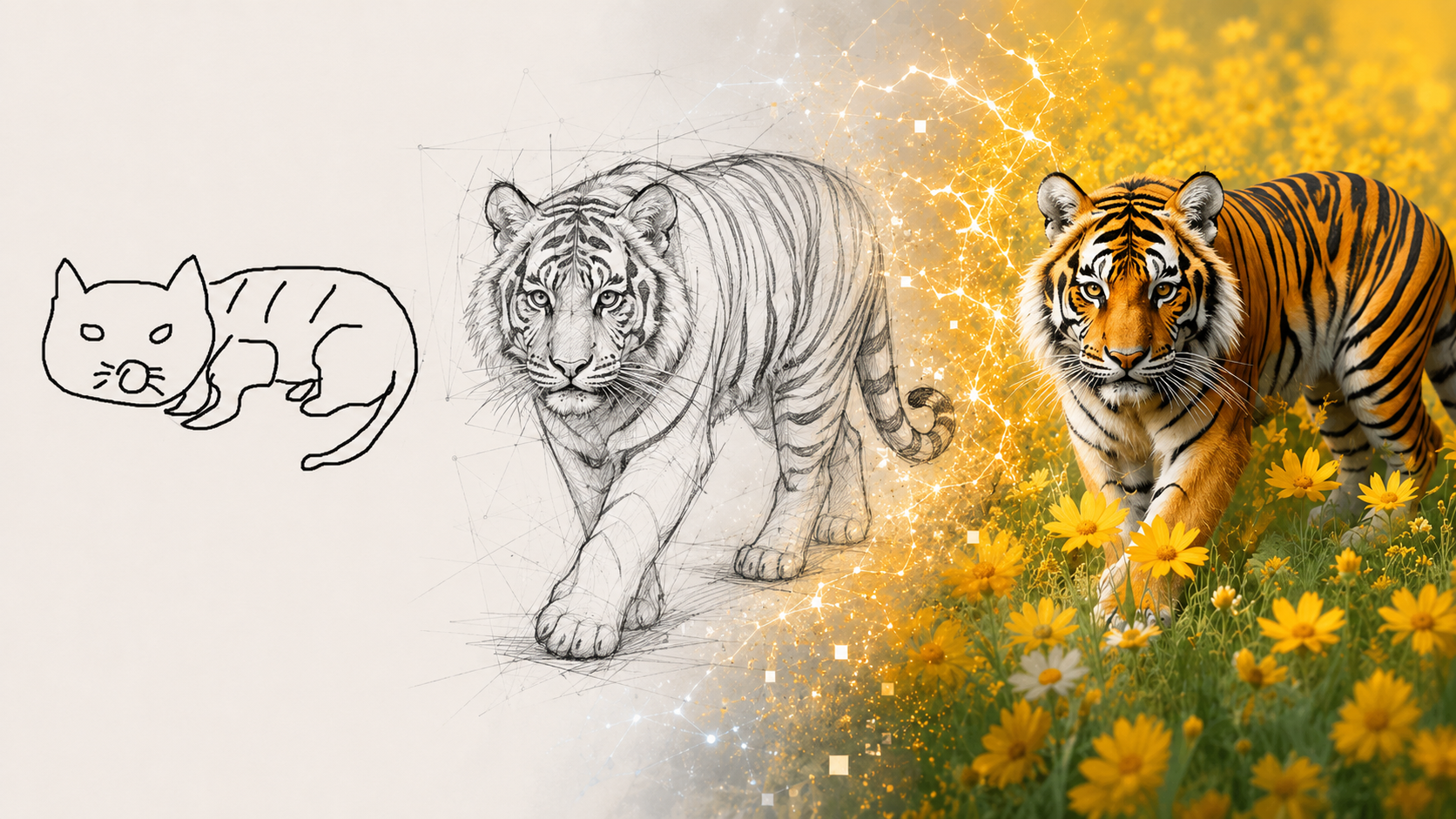
Sketch the idea, add a short prompt, and turn it into polished artwork in the visual style you choose.
Use the same workspace to develop visuals and motion for story scenes, social content, ads, and other fast-turn creative work.
Turn character ideas and key frames into reference images, then expand them into motion for short-form storytelling.
Build covers, creator visuals, campaign graphics, and other social assets with fast prompt and reference iteration.
Create polished product visuals, launch frames, and motion-ready ad concepts for paid campaigns and brand storytelling.
Start from a text idea, build a strong reference frame, and then turn it into motion in one connected creative flow.
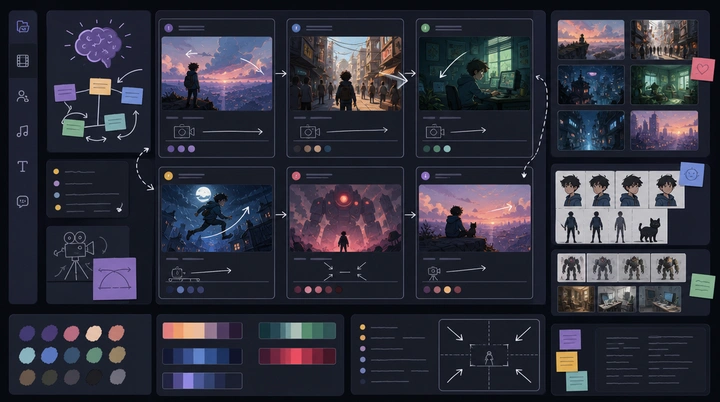
Describe the subject, setting, camera angle, mood, and output goal so the first visual direction is clear.
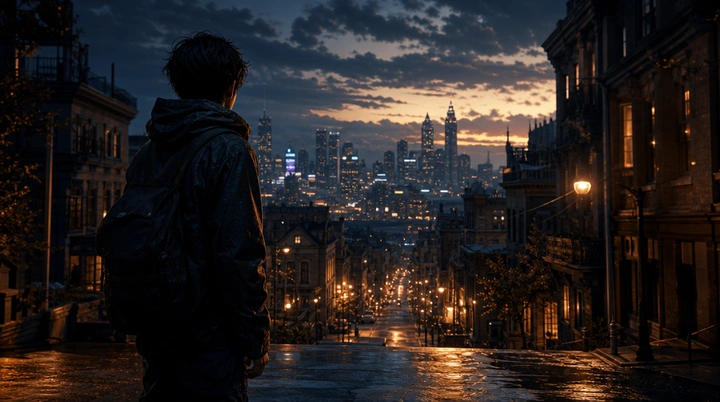
Use an image model to lock composition, styling, and key visual details before you animate the scene.
Bring the reference frame into a video model to add motion, camera movement, and short-form pacing.
Keep prompts, references, image generation, video generation, and outputs in one place.
Pick the model that fits the job instead of rebuilding the workflow around one provider.
Guide results with text, image references, and reusable creative direction.
Scale usage up or down with subscriptions and extra credits that match your workflow.
Compare results, refine ideas, and generate again without leaving the same workspace.
OpenVideoMaker is an online workspace for AI image and AI video creation. You can browse models, upload reference assets, submit generation tasks, and manage outputs, credits, and subscription status in one place.
Yes. The current public pages include both image and video model entry points. GPT Image and Nano Banana are available for image workflows, while Seedance is available for video generation.
You can browse the home page and model introduction pages without logging in. You need to log in before submitting a generation task so the result, credit usage, and asset record can be linked to your account.
Each model is optimized for a different type of work. GPT Image focuses on high-fidelity image generation, Nano Banana is better for more expressive and exploratory visual work, and Seedance is used for AI video generation. Each model page explains suitable scenarios, inputs, and settings.
Yes. After generation is complete, you can view and download the result from the asset detail view. For publication or commercial use, review your use case, the model provider terms, and applicable law.
Credits are calculated from the model, resolution, duration, and output count you select. The generator shows the current configuration so you can review the expected usage before you create.
Yes, according to the visibility setting you choose when generating. Public assets can appear in community showcases on the home page or model pages, while private assets stay out of public display.