Key strengths
- Text, first-frame, and reference-image generation in HappyHorse 1.1
- Up to 9 reference images in 1.1
- 720P and 1080P output with separate per-second pricing
Use HappyHorse as an AI video generator for text, first frames, or up to 9 reference images with 720P and 1080P settings. HappyHorse 1.0 video edit remains available.
Create HappyHorse 1.1 videos from text, a first frame, or up to 9 reference images with 720P and 1080P output. HappyHorse 1.0 video edit remains available on the same page.
Use one or more reference images, cite them as [Image 1], [Image 2], and generate a vertical 9:16 video where the character breaks out of a monitor.
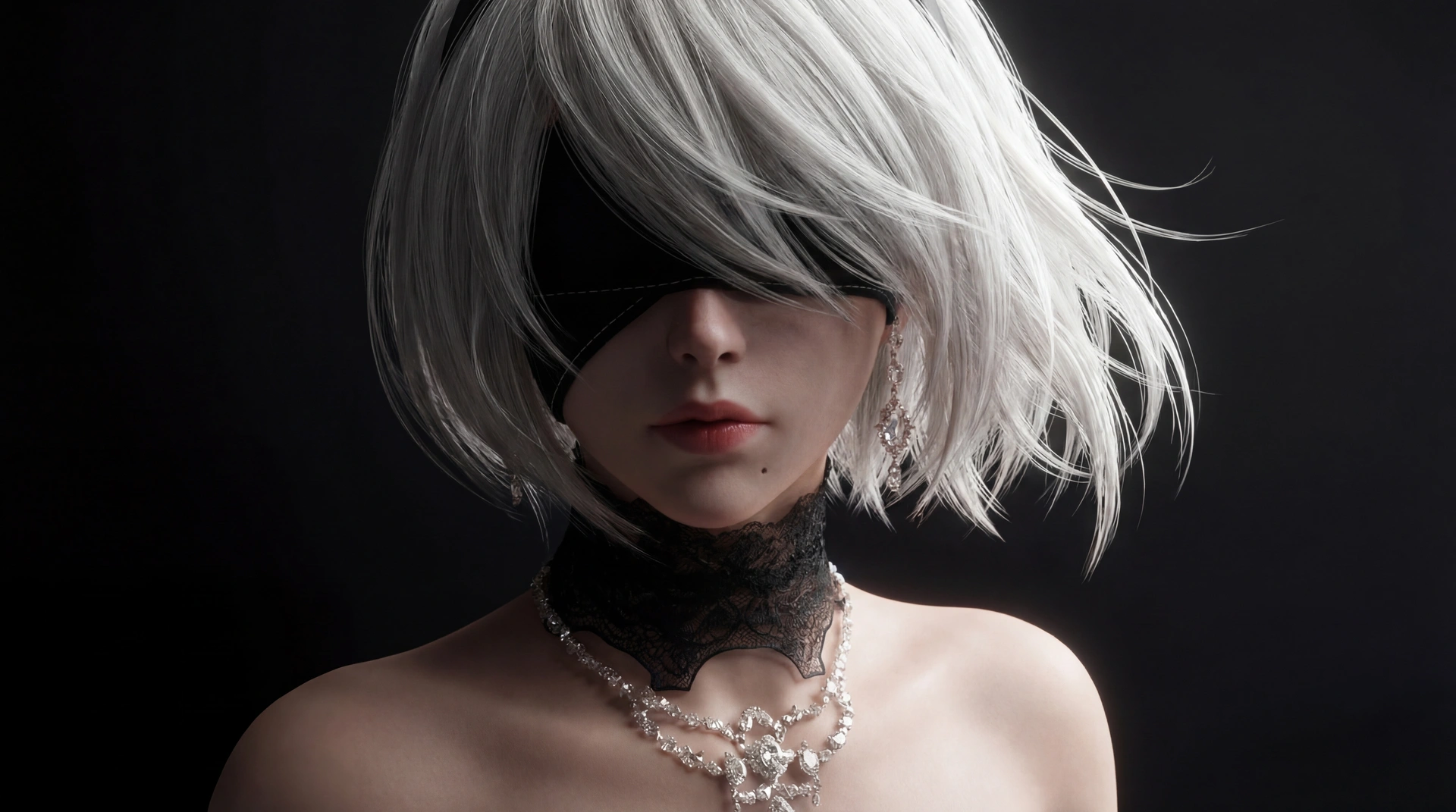
Use [Image 1] as the character reference; keep identity, hair, outfit, and body shape consistent. The character is inside a computer screen, shown from behind in the first frame. They quickly turn back in surprise. From a first-person POV, my hand slowly reaches out and touches the screen; the character also raises a hand in response. The screen shatters, I hold the character's hand, the character smiles gently and happily, then I quickly pull them out. Cinematic lighting, realistic hand, smooth motion, no background music.
Use HappyHorse 1.1 for text, first frame, and reference-image generation. Use HappyHorse 1.0 only when you need video edit.
Use ratio control when generating from text only.
Upload one clean first frame; the output ratio follows the image.
Upload up to 9 reference images and cite them as [Image 1], [Image 2], and so on.
Upload one MP4 or MOV input video; duration follows the source and is billed up to 15 seconds.
HappyHorse availability, upload validation, and output behavior depend on the provider API and selected media mode.
Open HappyHorse 1.1, choose text, first-frame, or reference-image generation, set the duration and ratio, add style references when needed, and generate a clip to refine.
First-frame outputs follow the uploaded image, so ratio is not sent to that API branch.
HappyHorse 1.1 supports up to 9 reference images. HappyHorse 1.0 video edit does not use that branch.
Text, first-frame, and reference-image outputs support 3-15 seconds. HappyHorse 1.0 input videos must be 3-60 seconds and are billed up to 15 seconds.
HappyHorse 1.1 supports 720P and 1080P. You can preview the required credits before generating.
Yes. Video edit remains available on this page as HappyHorse 1.0 video edit.
Generate 720P or 1080P AI videos with HappyHorse 1.1 from prompts, first frames, or references; includes model tips and review checklists.
HappyHorse 1.0 in OpenVideoMaker supports video editing, stylized transformations, and source-driven motion with practical briefing tips.