Seedream AI Image Generator - 4.5 & 5.0

Use the Seedream AI image generator with Seedream 5.0, 4.5, and 4.0 for text-to-image, multi-reference edits, infographics, and commercial stills.

You can describe the aspect ratio in the prompt, like 16:9, 9:16, or 1:1.
0 / 5000
Model overview

Seedream for text-to-image and multi-reference editing

Seedream is built for polished text-to-image work, multi-reference editing, and information-rich visuals that need clean structure and commercial-ready detail.

Seedream 5.0 / 4.5 / 4.0
Text-to-image and image editing
Up to 4 reference images
Featured model

Seedream 5.0

Model
Seedream 5.0

Key strengths

  • Supports high-quality text-to-image generation for structured prompts, polished layouts, and commercial image output.
  • Supports up to 4 reference images for image-to-image and multi-reference composition workflows.
  • Works well for information-rich visuals, controlled layouts, and polished commercial image output.

Best use cases

  • Weather explainers, editorial infographics, ecommerce visuals, and reference-driven style swaps.
  • Teams that need one page to cover text-only generation and multi-image editing.
  • Projects where prompt clarity, visual structure, and reference consistency matter most.

Prompt and workflow tips

  • Use text prompts for new images, or upload reference images when you need image-to-image or multi-reference editing.
  • Use Seedream 5.0 for the highest polish, 4.5 for balanced editing, and 4.0 for faster ideation.
  • Describe layout intent, composition, and publishing use directly in the prompt when structure matters.

How to use the Seedream AI image generator

  1. 01Open Seedream and choose 5.0, 4.5, or 4.0 based on polish and iteration speed.
  2. 02Write a prompt that explains subject, layout intent, style, and the final publishing context.
  3. 03Upload up to 4 reference images when you want image-to-image or multi-reference editing.
  4. 04Review the credit estimate, generate, then iterate from the saved result.

Seedream prompt guide

These examples show the two main Seedream workflows on the page: text-to-image generation and multi-reference editing.

Prompt template
Scene: where this happens, time of day, background, environment
Subject: who or what is the main focus
Important details: materials, clothing, texture, lighting, camera angle, lens feel, composition, mood
Use case: editorial photo / product mockup / poster / UI screen / infographic / concept frame
01

Structured text to image

Describe what you want to generate
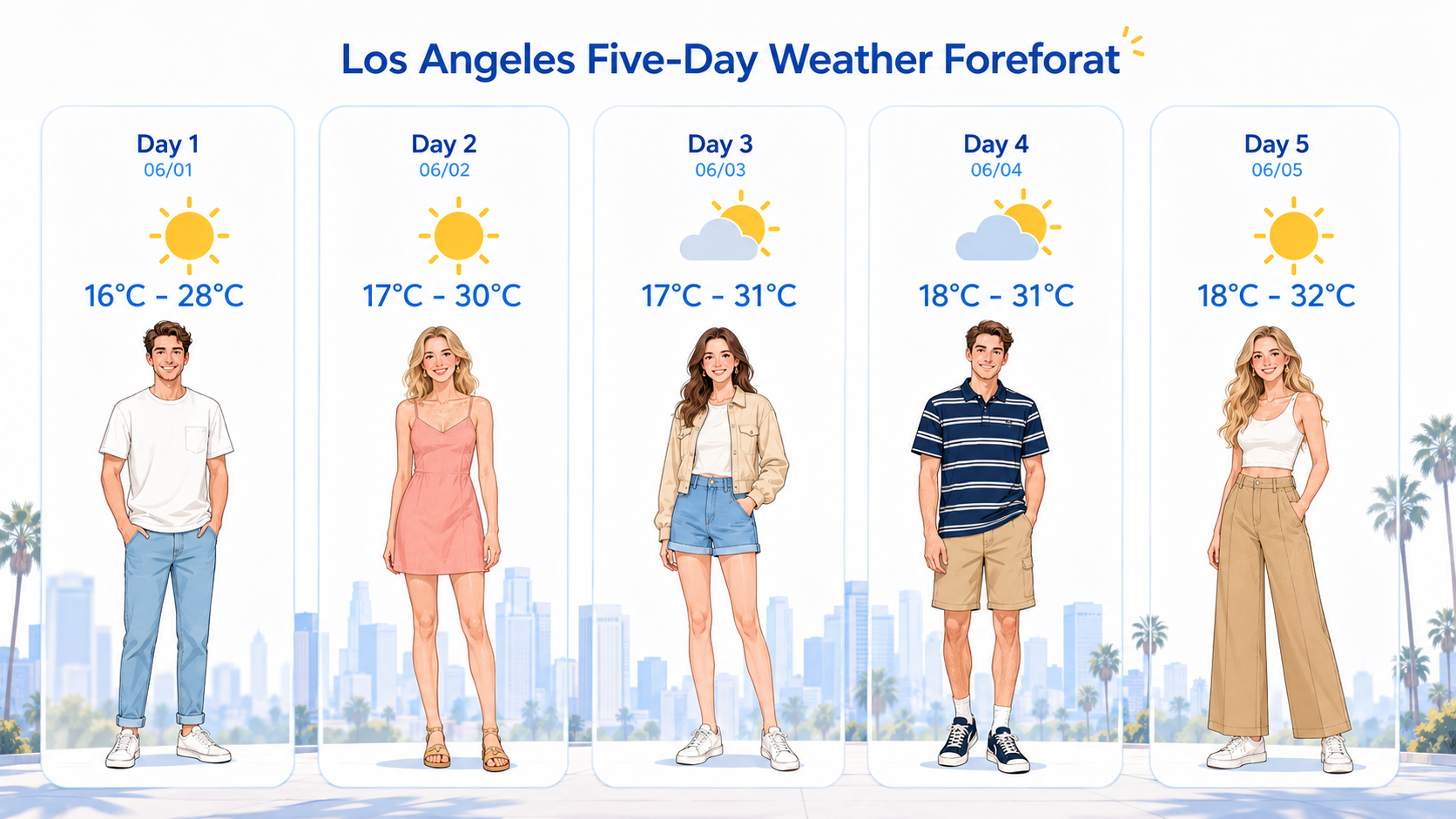
Create a five-day weather forecast visual for Los Angeles in a modern flat illustration style. Clearly show the weather, temperature, and outfit suggestion for each day. Use the title “Los Angeles 5-Day Weather Forecast” and arrange five equal vertical cards from left to right. Keep the overall look modern, clean, friendly, and vector-like with soft colors, clear lines, and cartoon-style young men and women with natural expressions, relaxed poses, and visible clothing details.
Seedream weather infographic example
02

Multi-reference image to image

Reference images
Multi-reference image to image Reference image 1
Reference image 1
Multi-reference image to image Reference image 2
Reference image 2
Describe what you want to generate
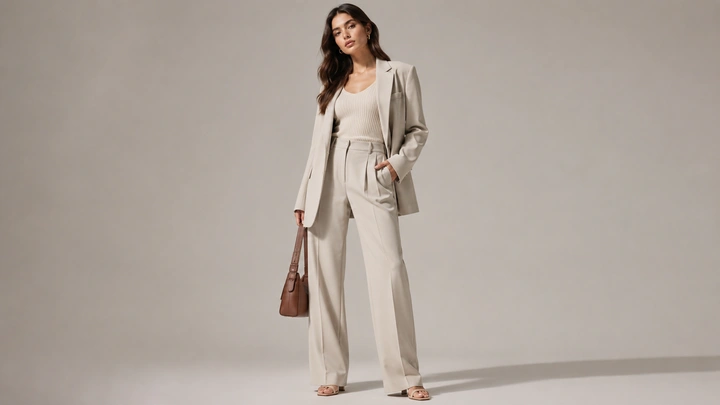
Replace the outfit in image 1 with the outfit from image 2 while keeping the pose, camera angle, facial features, and overall lighting of image 1 unchanged. Preserve realistic fabric texture and folds, and output the result in a polished commercial photography style.
Seedream fashion swap example

Best Seedream settings

Choose the model by information density, editing complexity, and how much final polish the image needs.

Seedream 5.0

Weather infographic

Use the newest model when the page needs strong visual hierarchy and polished illustration detail.

Resolution
4K
Seedream 4.5

Multi-reference fashion edit

Use 4.5 when you need stable structure from one image and stronger costume replacement from another.

Resolution
4K
Seedream 4.0

Fast concept draft

Use 4.0 for lighter exploratory passes before locking the final prompt or art direction.

Resolution
2K

Related tools

This tool uses third-party model capabilities and is not affiliated with or endorsed by the original model providers unless explicitly stated.

Frequently asked questions

How do I use the Seedream AI image generator?+

Open Seedream, choose version 5.0, 4.5, or 4.0, write a prompt with the subject, layout, style, and publishing context, optionally add reference images, choose the output settings, and generate variations.

Can I use reference images with Seedream?+

Yes. The current interface supports up to 4 reference images, and each uploaded image must be 20MB or smaller.

How many reference images does Seedream support?+

The current interface supports up to 4 reference images, and each uploaded image must be 20MB or smaller.

How should I choose between Seedream 5.0, 4.5, and 4.0?+

Use 5.0 when you want the strongest polish and information design, 4.5 for balanced multi-reference editing, and 4.0 when speed matters more for early exploration.